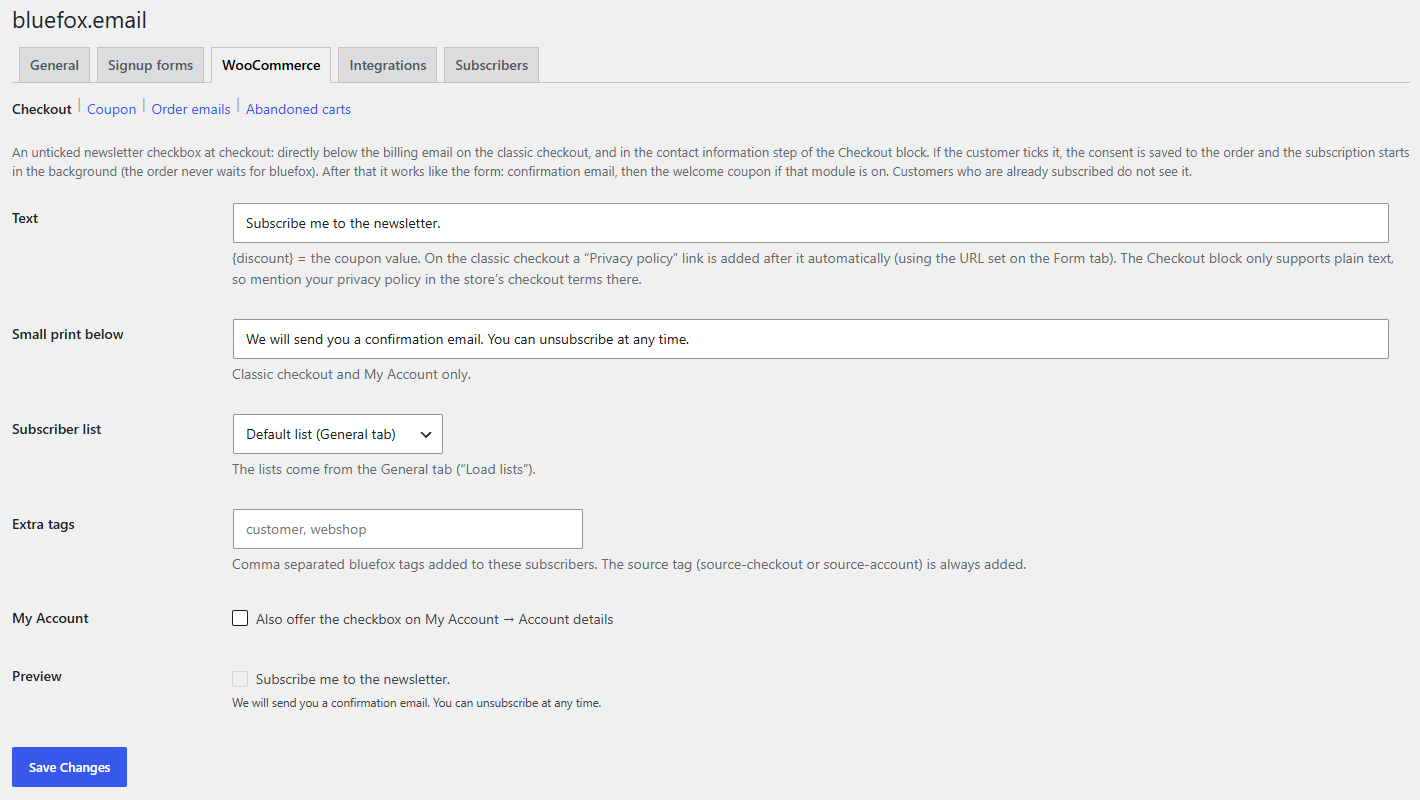
Checkout opt-in
Switch: Checkout opt-in (needs WooCommerce). Settings: Checkout tab.
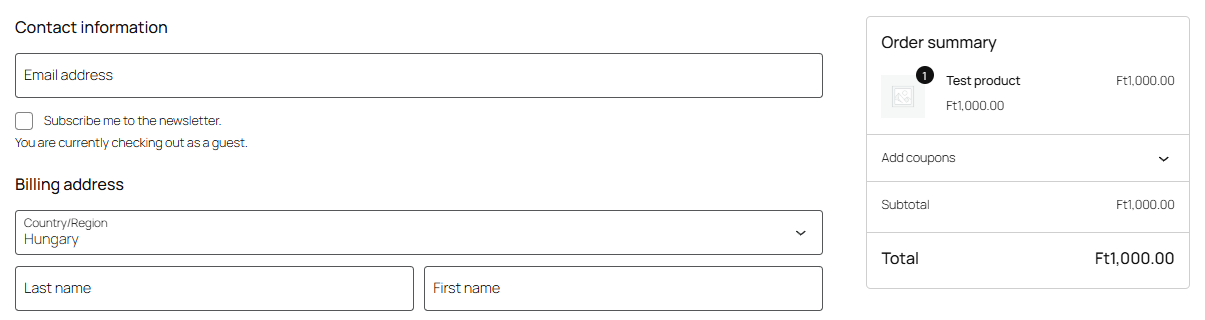
An unticked newsletter checkbox at checkout. It is separate from your terms acceptance. Customers who are already subscribed (confirmed through the plugin, or an existing subscriber) do not see it; customers who unsubscribed since then see it again.
The checkbox appears directly below the billing email field. The text comes from the Checkout tab; a Privacy policy link (the URL from the Form tab) is added after it, and the Small print below text under it.
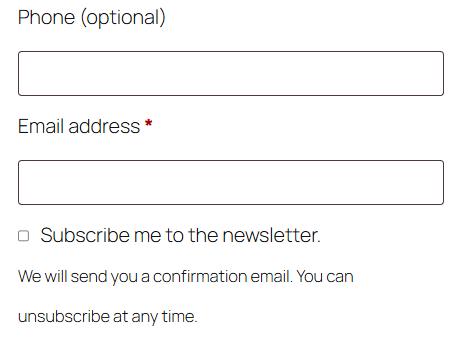
The checkbox is registered as an additional checkout field in the contact information step (see the picture above). The block checkout only supports plain text, so no privacy link is added – mention your privacy policy in the store's checkout terms. The small print is not shown.
What happens after the order
- When the order is placed, the consent is saved to the order:
_cfbe_optin(yes),_cfbe_optin_at(UTC time),_cfbe_optin_text(label + privacy URL) and_cfbe_optin_ip. The IP comes from the same source as everywhere else in the plugin (Privacy tab, Visitor IP address), not from WooCommerce's geolocation helper. - The subscription runs as a background job – the order never waits for bluefox, and bluefox errors never block checkout.
- From here it works like the form: bluefox sends the confirmation email, and the welcome coupon follows after confirmation if that module is on. An existing bluefox contact is only updated at once (and a paused one reactivated) when a logged-in customer orders with their own account email; otherwise name and tags wait for the confirmation, as described in How a signup works.
- The result is stored as
_cfbe_optin_resultand shown in the order's admin screen below the billing address.
The subscriber name is the billing first and last name (filter: cfbe_checkout_subscriber_name). The tag source-checkout and the extra tags from the Checkout tab are added.
My Account
Tick My Account → Also offer the checkbox on My Account → Account details. Customers who tick it there are subscribed in the background with the source-account tag. This counts as a request by the address owner: an existing contact is updated at once and a paused one is made active again.
Preview
The Checkout tab shows a preview of the label with {discount} replaced by the coupon value.