Order emails
Switch: Order emails (needs WooCommerce). Settings: Order emails tab.
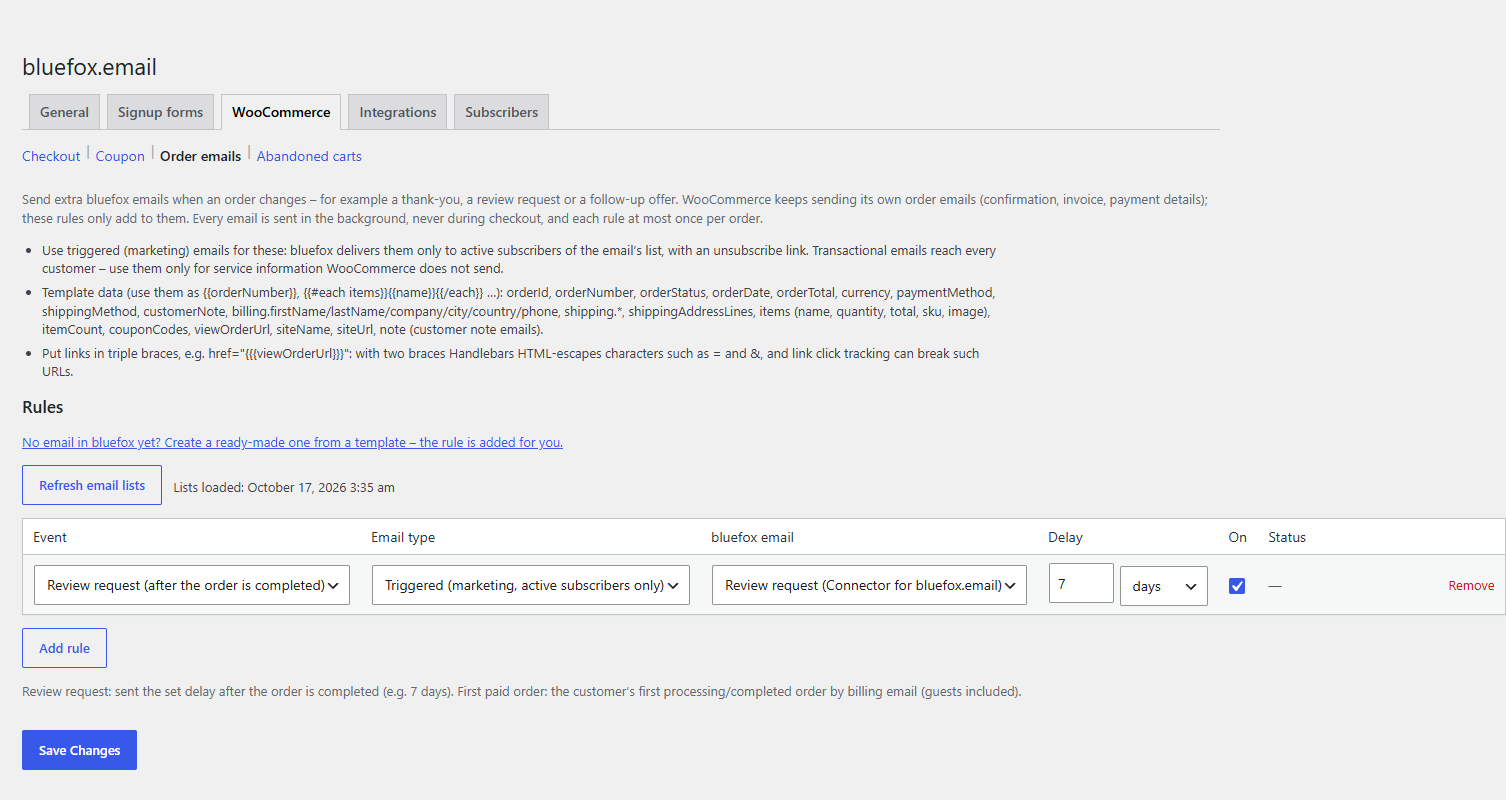
Send extra bluefox emails when an order changes – a thank-you, a review request, a follow-up offer. You design the emails in bluefox (or create ready-made ones on the Email templates tab); the plugin sends them with the order data.
WooCommerce keeps sending its own order emails (confirmation, invoice, payment details). These rules come on top and never replace them.
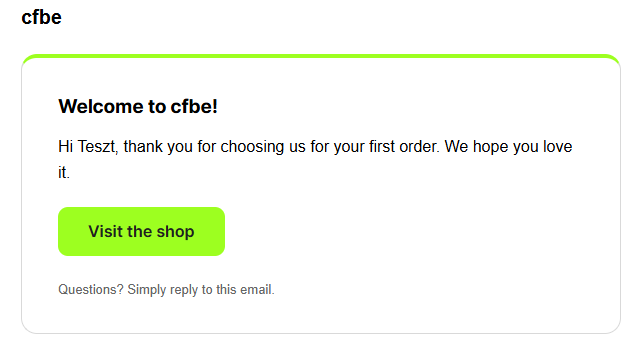
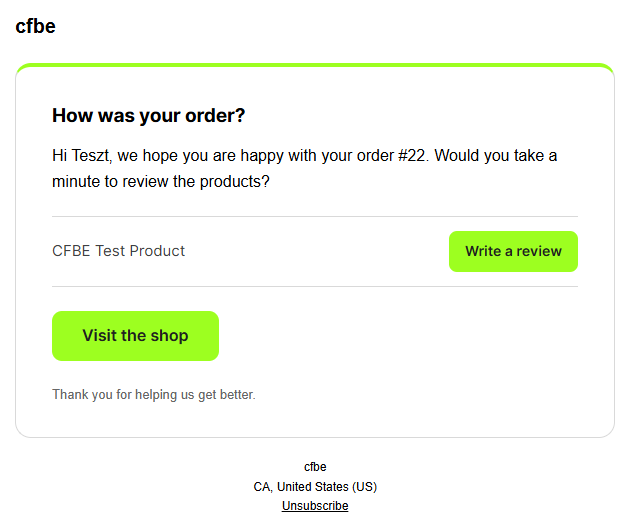
Two of them, created from the Email templates tab and sent for a real test order:
Rules
Each row on the tab is a rule: Event → Email type → bluefox email, with an optional Delay and an On checkbox. Up to 50 rules (shared with the abandoned cart reminders).
| Event | When it fires |
|---|---|
| Order status: any status | the order changes to that status (every status WooCommerce knows, custom statuses included) |
| First paid order of a customer | the order becomes paid (processing / completed) and the customer has no other paid order – checked by billing email (guests included) and by customer ID |
| Note to customer added | you add a Note to customer in the order screen. Each note is sent once |
| Review request (after the order is completed) | the order is completed. Use a delay, e.g. 7 days |
Delay is in minutes, hours or days (at most one year). 0 sends right away – still in the background, never during checkout.
Click Refresh email lists to load your bluefox emails into the dropdowns. A rule without an email is saved switched off.
Transactional or triggered
| Email type | Use for | Who receives it |
|---|---|---|
| Transactional (service email, anyone) | order updates | any customer |
| Triggered (marketing, active subscribers only) | review requests, thank-yous, offers – the default for new rules | only active subscribers of the email's list – bluefox adds an unsubscribe link |
Pick an email of the matching type in bluefox. An ID that bluefox knows as the other type is cleared on save.
Sending
- Each rule is sent at most once per order. The order gets the meta
_cfbe_sent_<rule id>when it is sent; every customer note counts separately. - The recipient is the billing email of the order.
- Network errors, rate limits and bluefox 5xx answers are retried after 5 and 30 minutes (3 attempts in all). Other errors are not retried.
- The Status column shows the last send time, the total count and the last error per rule. Details are on the Logs tab.
Template data
The email gets the order as Handlebars data, for example {{orderNumber}}, {{orderTotal}}, {{billing.firstName}} and {{#each items}}{{name}} × {{quantity}}{{/each}}. The note text is in {{note}} for customer note emails. The full list is in Email template data.
Links in triple braces
Write links as href="{{{viewOrderUrl}}}". With two braces Handlebars HTML-escapes characters such as = and &, and click tracking can break such URLs.
Developers can change the data with the cfbe_woo_events_data filter – see Hooks.