Signup forms
Switch: Signup forms (on by default). Settings: Form tab.
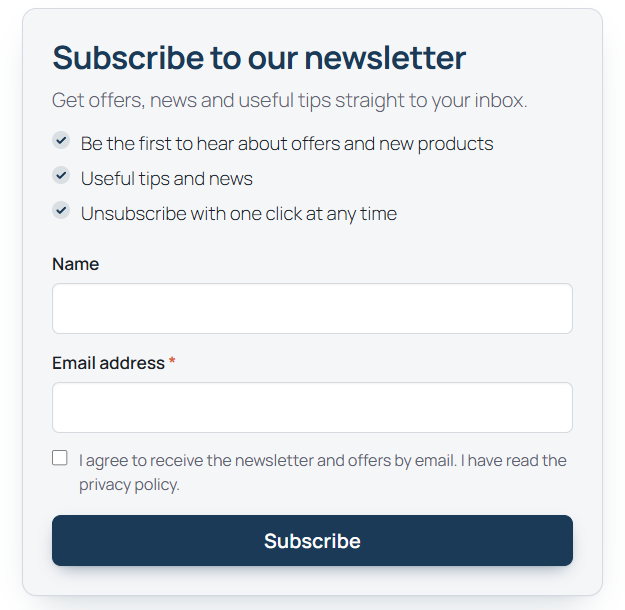
The form has an optional Name field, the required Email address, an optional interests field, a required consent checkbox and a submit button. Texts, colours and corner radius are set on the Form tab; the tab shows a live preview.
| Card | Banner |
|---|---|
 |
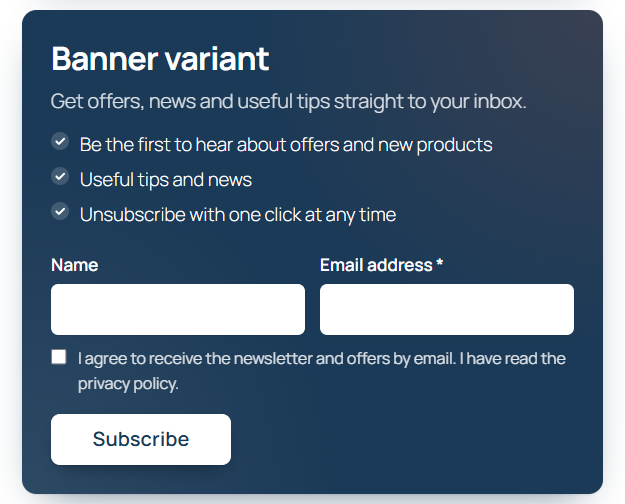 |
Three styles are available: Card (light background, subtle border), Banner (primary-colour background, light button) and Plain (no decoration). The Inline layout puts the fields in one row on wide screens.
Add a form to a page
In the block editor add the bluefox.email signup form block. The sidebar has three panels:
- Subscription – the bluefox list (empty = default list), extra tags and a placement name.
- Content – heading, intro text and button label (empty = the Form tab text).
- Layout and fields – style, and toggles to hide the Name and Interests fields.
The block supports wide and full alignment and renders on the server, so the editor preview matches the site.
Put [cfbe_form] in a Shortcode block, a classic editor, a widget or your page builder's shortcode element. [cfbe_newsletter] is an alias.
[cfbe_form variant="banner" layout="inline" heading_tag="h3" place="footer"]
[cfbe_form list="LIST_ID" tags="webinar,spring-campaign" place="webinar"]
All attributes are listed in Shortcodes and block.
[cfbe_promo] shows a compact box or bar with a button. The button opens the full form in a dialog, or scrolls to a form on the page.
[cfbe_promo style="bar" place="top"]
[cfbe_promo style="bar" place="top" action="scroll"]
[cfbe_promo style="dark" place="product"]

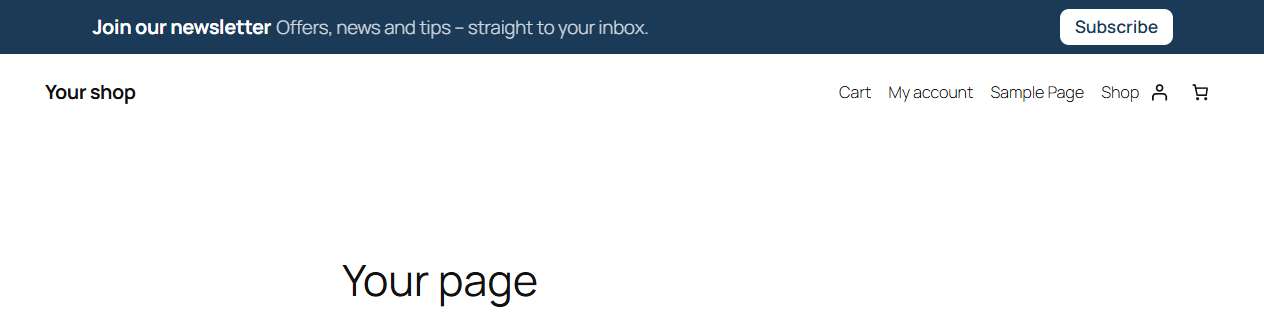
style="bar" as a slim bar at the top of the page:
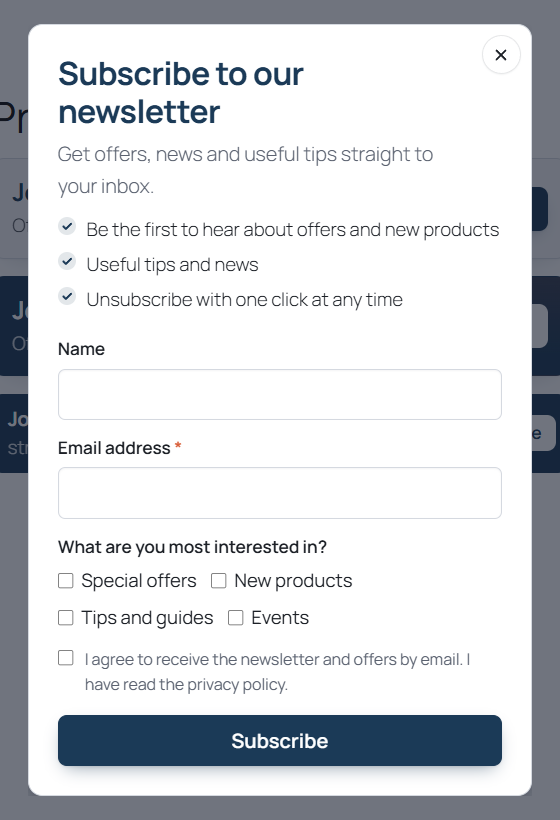
The button opens the full form in a dialog:
With action="scroll" the button scrolls to the last [cfbe_form] on the page (or the target="#id" element) and focuses the email field; if there is no form, it opens the dialog.
See Popup.
The Shortcodes tab in wp-admin has ready-to-copy examples (top bar, footer band, card in the content, list-specific form, thank-you and preferences pages) and the full attribute reference.
List and tags per form
A form can subscribe to another list than the default and add extra tags. The list, the tags and the placement name are signed into the form (HMAC with the site's salt), so visitors cannot change them in the browser. Unsigned values are ignored.
A signed list is only used when it is one of your project's lists that an admin has loaded with Load lists on the General tab, or a list chosen in the settings (default, popup, checkout or coupon list). Any other list falls back to the default list.
New bluefox list?
After you create a list in bluefox and use it in a shortcode or block, click Load lists on the General tab once. Until then, signups from that form go to the default list.
{discount} placeholder
In the heading, intro, benefits, button, offer line, badge and promo texts, {discount} is replaced with the welcome coupon value from the Coupon tab, e.g. 10% or €20.
After submit
The visitor sees one of the messages from the Form tab:
| Situation | Message |
|---|---|
| New signup, confirmation email re-sent, queued for retry, already subscribed, or an address bluefox suppressed (bounced, complained) | Successful signup |
| Already an active or paused subscriber, and Show the "Already subscribed" message is on | Already subscribed |
| bluefox is not configured, or another error | Error |
By default the form gives the same answer whether or not an address is on your list, so nobody can use it to find out who is subscribed. A suppressed address shows as failed on the Subscribers tab.
Existing contacts are never changed by an unconfirmed request:
| bluefox status | What happens |
|---|---|
active |
Nothing changes: no name or tag update, no coupon. |
unverified |
The confirmation email is re-sent (at most once a day per mailbox). Name and tags are applied after the person confirms. |
unsubscribed |
bluefox re-sends its confirmation email (at most once a day per mailbox). Name and tags are applied after the person confirms. |
paused |
Stays paused; nothing changes. |
The exception is a request made by the address owner: a logged-in customer ordering with their own account email, or the My Account opt-in. Then the contact is updated at once, and a paused contact is made active again.
A new signup for an address whose earlier signup expired or failed starts over: the row goes back to pending with the new data and consent.
Spam protection without nonces
Public forms contain no nonces and nothing visitor-specific, so they work on cached pages. Instead:
- a hidden honeypot field;
- a fill-time token – when the form becomes visible, the script fetches a token signed by the site from
/wp-json/cfbe/v1/form-token(never cached). Submissions without a valid token, or with one younger than 3 seconds or older than 2 hours, are dropped (the bot still sees a success message). The script waits out the rest of the 3 seconds for fast visitors, so this works on cached pages too; - rate limits – 5 submissions per IP per 10 minutes (IPv6: per /64 range), 30 signups per minute for the whole site, and 3 signups per mailbox per hour from any source (forms, checkout, My Account, form plugins). Mailbox ignores
+tagaliases and, for Gmail, dots; - at most one confirmation email re-sent per mailbox per day;
- a 4 KB request size limit.
Accessibility
Labels on every field, error messages linked with aria-describedby, a polite live region for the result, focus moved to the result, and in the popup a focus trap, role="dialog", aria-modal and Esc to close. Animations respect prefers-reduced-motion.
Loading of assets
By default the CSS and JavaScript (cfbe-form.css, cfbe-form.js) load only on pages with a form. Turn on Form → Loading → Load CSS/JS on every page to avoid a flash of unstyled content when a form is added by a page builder late in the page. If a caching plugin delays JavaScript (for example WP Rocket's Delay JavaScript execution), exclude cfbe-form.js and cfbe-popup.js.