Connect to bluefox.email
Open bluefox.email → General.
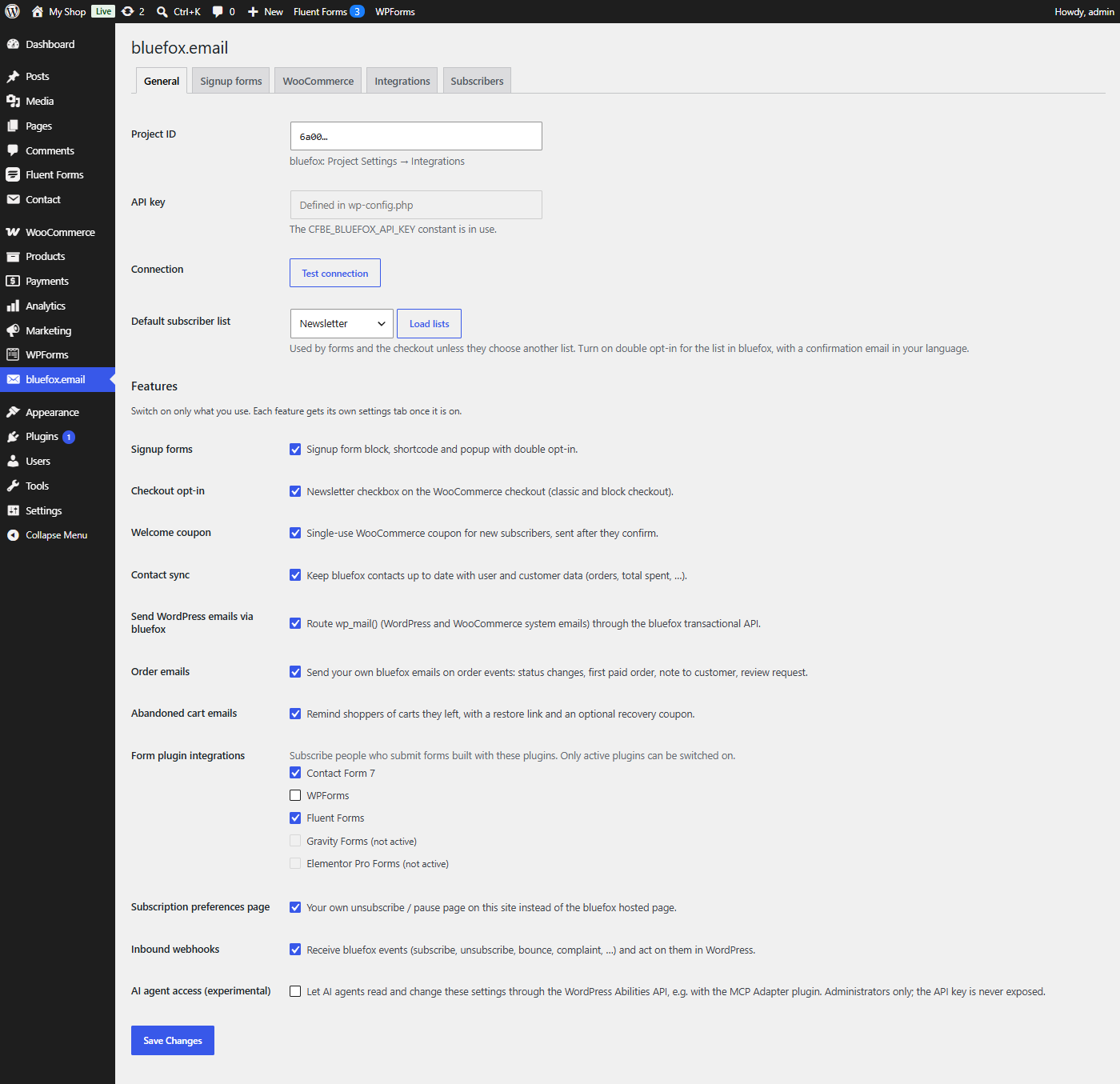
1. Project ID
In bluefox.email open Project Settings → Integrations and copy the project ID into Project ID.
2. API key
Create a key in bluefox under Project Settings → API Keys & Domain Whitelist. You can store it in two ways:
The constant wins over a stored key. The API key field is then disabled and shows Defined in wp-config.php. The key is never stored in the database, so it is not in database backups or exports.
Paste the key into API key and save. It is a password field: the stored key is never printed back. Leave it empty on later saves to keep the stored key.
3. Test the connection
Click Test connection. A success message means the project ID and key work.
4. Load lists and pick the default list
Click Load lists, choose the Default subscriber list and click Save Changes. The list names are cached for a day. Forms, the popup, the checkout opt-in and form integrations use the default list unless you choose another one for them.
Click Load lists again whenever you create a new list in bluefox that you use in a block or shortcode: a form may only target lists the plugin has loaded (or lists chosen in the settings). Otherwise its signups go to the default list.
Turn on double opt-in
The plugin does not send confirmation emails itself. bluefox sends them when double opt-in is on for the list – see Set up your bluefox list. The list picker marks lists that have double opt-in on.
Site behind Cloudflare or a proxy?
Then every visitor reaches WordPress from the proxy's address. Set Privacy → Visitor IP address to Cloudflare (CF-Connecting-IP) (or your proxy's header), so consent records store the real visitor IP and the signup rate limits do not hit all visitors at once. See Troubleshooting.